Instead of manually retyping every Garmin Xero shot reading, build a session record that carries measured velocity into your ballistic profile and keeps the original readings intact. This 2026 workflow uses a checked manual transfer rather than assuming an automatic connection between your chronograph, ballistic software, and target camera.
- Use Garmin Xero measured velocity in your ballistic profile; preserve the original session before changing any inputs.
- The Garmin Xero C2 Chronograph measures projectile velocity; target cameras show impacts, not velocity.
- Longshotcameras target cameras are best for shooters who need to view impacts remotely.
- Keep ammunition identity, velocity units, and session conditions attached to every transferred value.
Why this matters
A chronograph reading and a ballistic prediction answer different questions. The chronograph measures projectile velocity; the ballistic profile uses velocity alongside other inputs to calculate a predicted trajectory. A target image provides a separate record of where a shot landed.
Treat measured velocity, calculated trajectory, and observed impact as separate records. Combining them without preserving their identities makes mistakes harder to trace. A number copied correctly into the wrong ammunition profile is still wrong.
Longshotcameras sells target cameras that let shooters view impacts remotely. That makes a target camera useful alongside a chronograph, but it does not turn the camera into a velocity sensor or establish a software integration.
For your 2026 range records, the useful deliverable is a traceable profile: you should be able to identify which measurement session supplied its velocity, which ammunition was measured, and which settings were entered manually.
Before you start
- Bring the measurement equipment and its instructions. You need your Garmin Xero chronograph, its model-specific manual, a stable setup, and permission to use the equipment at the range. Follow the manual and range officer's directions for placement and operation.
- Have access to the destination profile and a recording method. Use your ballistic application's existing rifle and ammunition profile, plus a spreadsheet or notebook. Keep any target-camera connection separate from the chronograph transfer.
- Check units and profile identity before recording. A velocity in feet per second is not interchangeable with meters per second. The non-obvious trap is copying a valid session average into a different ammunition profile or overwriting your only original record.
Do not begin with an assumed Bluetooth connection or import button. This guide's transfer method works through a session record and manual entry; it does not depend on a particular application supporting Garmin data imports.
Choose the right role for each tool
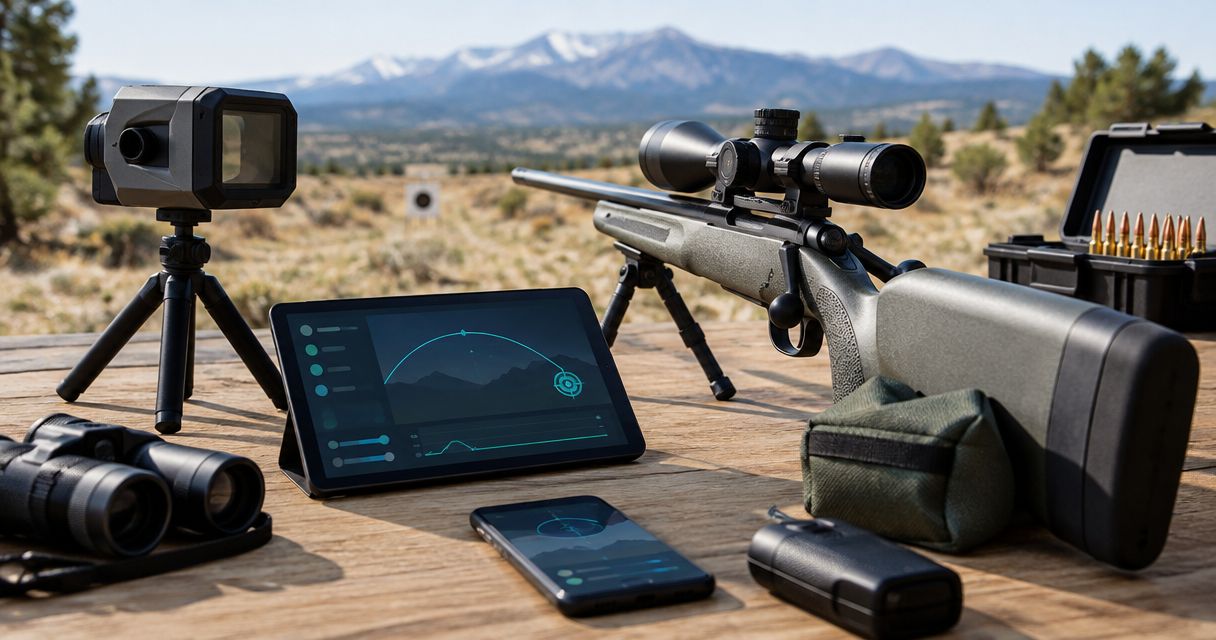
The Garmin Xero C2 Chronograph supplied in the product catalog is described as measuring projectile velocity. A target camera supplies a view of the target. A support holds equipment in position. None of these roles replaces the others.
| Tool or record | Best for | Useful contribution | Limitation |
|---|---|---|---|
| Garmin Xero C2 Chronograph | Shooters recording projectile velocity | Supplies measured velocity data | Velocity alone does not define a ballistic profile |
| Longshotcameras target cameras | Shooters reviewing impacts remotely | Provides a target view without walking downrange | An impact image does not supply measured velocity |
| Compact Tripod | Shooters needing a steady equipment base | Supports a camera downrange or equipment at the bench | A steady base does not transfer or interpret data |
| Session worksheet | Shooters who want an auditable transfer | Connects measurements with ammunition identity and units | Manual entry requires checking |
Use the Garmin Xero C2 Chronograph for measurement and the session worksheet for traceability. The advantage is a clear record with no assumed integration. The trade-off is that you remain responsible for checking the transfer.
Session record
- Create a worksheet before you start. Add these column headings: Session ID, Date, Rifle, Ammunition, Velocity unit, Shot order, Measured velocity, and Notes. These are worksheet labels defined for this guide, not Garmin menu names.
- Give the session a distinct identifier. Include 2026 in your date record, and distinguish separate ammunition lots or separate measurement sessions rather than collecting everything under one broad rifle name.
- Set up the Garmin Xero using the instructions for your exact model. Select the appropriate measurement mode and units according to that manual. Do not substitute another model's placement instructions or menu sequence.
- Record each captured reading in shot order. Preserve the displayed unit with the reading, and annotate interruptions or identifiable recording errors without silently changing the original data.
- Close the record when the ammunition identity or test conditions change. Save the original readings before calculating a summary or transferring a value to another application.
Expected result: you have a source record that identifies what was measured and which unit applies. You can return to individual readings instead of relying on an unexplained average.
Keep this step deliberately boring. A memorable session name is less useful than one that separates otherwise similar records. If your ammunition label is ambiguous, resolve it before transferring the data; a later target image cannot recover missing ammunition identity.
Profile transfer
- Open the ballistic profile that matches the rifle and ammunition in your session record. Check its identity before changing any values. Save a copy or record the existing settings using the application's supported method.
- Identify the destination's velocity input and its unit. Follow that application's documentation for the exact field name; this guide does not assume that every application uses the same label or supports the same import format.
- Transfer the session's representative velocity into that input. If you use a session average, retain the individual readings and note that the transferred figure is an average rather than a single shot.
- Check the other profile inputs independently. Bullet identity, the drag model or ballistic coefficient source, sight height, zero information, and environmental inputs are not supplied merely by entering chronograph velocity.
- Save the updated profile through the application's documented controls. Reopen it and compare the saved velocity and unit against the session worksheet.
Expected result: the correct profile contains a velocity value that you can trace to a specific measurement session. The original profile and original measurements remain available for comparison.
Use explicit unit labels in your 2026 worksheet. The established conversions are 1 foot = 0.3048 meters, 1 yard = 0.9144 meters, and 1 inch = 25.4 millimeters. These conversions apply to different quantities; they are not interchangeable shortcuts.
For example, a destination velocity field uses a velocity unit, while a sight-height field uses a length unit. Copying a number without its quantity and unit removes the context needed to check it. Prefer matching source and destination units over unnecessary conversion.
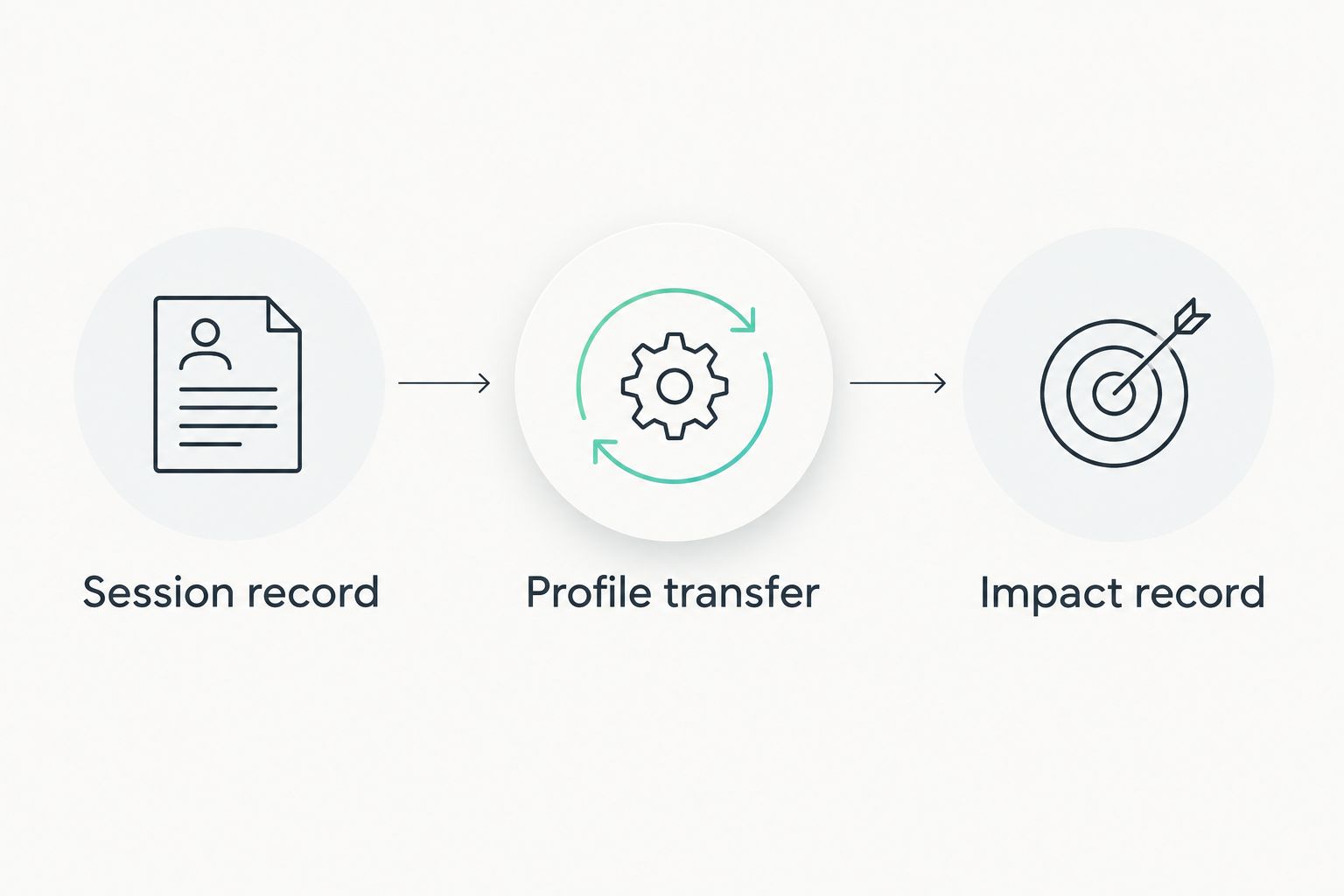
Impact record
- Set up the target camera only during a range-authorized safe period. Follow the camera instructions and keep equipment placement outside the projectile path. A remote view never authorizes anyone to enter a live range.
- Establish the camera connection using the Longshot camera connection guide. Confirm that the visible target is yours before attaching observations to the session.
- Record target observations under the same Session ID used for the chronograph data. Add the target distance and its unit, plus the relevant profile version, so the image and measurement record remain associated.
- Distinguish a visible impact from an identified shot. If you cannot tell which shot produced which hole, label the image as a group observation rather than assigning individual velocity readings to individual holes.
- Save the observation without rewriting the chronograph readings to fit it. Review discrepancies by checking the measurement record, profile inputs, target identity, and conditions separately.
Expected result: your target observations are attached to the correct session without being mistaken for additional velocity measurements.
Longshotcameras target cameras are best for shooters who need to view impacts remotely. Their role in this workflow is observation. The limitation is equally important: the camera view does not prove that every ballistic input is correct.
Equipment for the measurement station
The Garmin Xero C2 Chronograph and Compact Tripod serve different parts of the setup. The chronograph supplies velocity data; the tripod provides a steady base. Choose the support arrangement according to your equipment's mounting instructions rather than assuming every device attaches directly.


The purchase decision should follow the missing task. If you already have measured velocity but lack a useful target view, another chronograph does not solve that problem. If you have target images but no measured velocity, the camera cannot fill the measurement gap.
Update the profile after a new measurement session
A second workflow uses the same record structure when you collect new velocity data. Create a new session before changing an existing profile. This preserves the difference between a new measurement and a correction to an old transcription error.
- Keep the original session intact and create a new Session ID.
- Record the ammunition identity and conditions again, even when they appear unchanged.
- Compare the new session with the old record using matching units.
- If you update the ballistic profile, record which new session supplied the replacement value.
- Retain the prior profile settings so the change remains reversible and understandable.
For recurring measurements in 2026, this is more useful than repeatedly overwriting a single worksheet row. You retain the history needed to distinguish a changed measurement from a changed input.
Do not treat every different reading as a reason to edit the profile. First establish whether you are comparing equivalent records. A new ammunition lot, a different unit, or a different session definition belongs in the record before you interpret the difference.
Troubleshooting
The saved velocity does not match the source record
Compare the saved value with the worksheet, including its unit. Check for transcription errors, decimal placement, and conversion mistakes. Correct the destination entry while preserving the source measurement.
The readings belong to the wrong ammunition profile
Stop the transfer and identify the session's ammunition record. Restore the previous profile settings from your saved copy, then transfer only the measurements that belong to the intended profile. Do not merge unidentified sessions to produce a cleaner-looking average.
The chronograph does not record a shot
Return to the Garmin manual for your exact model and verify the prescribed setup, measurement mode, and operating conditions. Record the event as a missing reading; do not invent a velocity or assume the missing value equals the session average.
The target view shows holes you cannot identify
Label the image as a group observation. At the next range-authorized safe opportunity, establish a clearly identifiable target and record the observation sequence. Do not force a shot-by-shot match when the evidence does not support one.
You cannot find an import or synchronization control
Use the checked manual-transfer workflow. An absent control is not a reason to rename files or try undocumented connections. Consult the destination application's documentation before attempting any supported import.
Customize your workflow
Add worksheet fields only when they answer a question you actually need to revisit. Useful additions include ammunition lot, recorded environmental conditions, target identifier, and profile version. Keep the original readings separate from calculated summaries.
For a shared range session, assign a distinct record to each shooter and equipment setup. A shared target view is convenient, but it does not automatically establish whose measurement belongs to whose impact.
Your 2026 workflow should finish with a source record, a saved profile, and an associated observation record. Longshotcameras supports the target-view portion; your chronograph and ballistic application retain their separate measurement and calculation roles.
FAQ
How do I turn Garmin Xero readings into ballistic data?
Enter a representative measured velocity into the matching ballistic profile after checking units and ammunition identity. Preserve the original session readings and verify the saved entry.
Does Garmin Xero automatically connect to every ballistic app?
Do not assume automatic compatibility with every ballistic application. Use the application's documented connection or import method when supported; otherwise use a checked manual transfer.
Should I enter one shot or a session average?
Use a documented representative value from a clearly identified session rather than an unexplained individual reading. If you transfer an average, retain the individual readings and label the value as an average.
Can a target camera replace a chronograph?
No, a target camera shows impacts rather than measuring projectile velocity. Use the chronograph for velocity measurement and the camera for target observation.
What units should I use for Garmin Xero data?
Use the velocity unit required by your destination profile and preserve the source unit in your record. Feet per second and meters per second require conversion; never copy the number alone.
What should I do when a shot has no velocity reading?
Record the shot as missing velocity data and check the chronograph's model-specific setup instructions. Do not substitute an invented reading or silently replace it with an average.
Can I match each velocity reading to a target hole?
Only match individual readings to individual impacts when your observation sequence identifies them clearly. Otherwise retain the target image as a group observation without assigning unsupported shot identities.
One last thing
Save the pre-transfer profile, not just the finished one. An updated value shows what you use now; the previous version shows what changed. That distinction makes a later correction straightforward instead of turning it into a reconstruction exercise.
Before leaving the range, check that the session identifier appears on your measurement record and target observations. That small administrative step keeps useful evidence from becoming an unidentified collection of numbers and images.