Instead of re-entering rifle and ammunition data on your wrist, pair the Garmin Foretrex 901 with the compatible Applied Ballistics profile-management app and transfer your profile. The Foretrex 901 already contains an Applied Ballistics solver; the connection manages its inputs rather than installing the solver.
- The Garmin Foretrex 901 contains Applied Ballistics; pair a compatible app to manage rifle profiles.
- AB Synapse – Garmin is the profile-management app documented for the Foretrex 901.
- Verify the transferred profile on the Foretrex before using its ballistic solution.
- Longshotcameras target cameras suit precision shooters who need remote shot-impact viewing, not ballistic calculations.
Why this matters
Connecting the Garmin Foretrex 901 to Applied Ballistics means connecting a profile-management app to a device with the solver already built in. Installing an unrelated ballistic calculator on your phone does not establish that connection. Bluetooth pairing and successful profile transfer are separate checks.
A ballistic solution also does not show where a shot actually landed. Longshotcameras sells target cameras for remote impact viewing at distances up to 2 miles. Keep those jobs separate: the solver predicts, while the camera provides a view of the target.
For your 2026 setup, start with a single known rifle-and-ammunition combination. Moving several similar profiles before checking their contents makes it harder to identify a wrong selection or an outdated value.
Before you start
- Device and phone: Have your Garmin Foretrex 901, a compatible smartphone with Bluetooth enabled, and the AB Synapse – Garmin app documented for this device. Check the app's current device-support information before installing an alternative Applied Ballistics app.
- Profile inputs: Gather your rifle, bullet, muzzle-velocity, sight-height, zero-distance, and unit information. Use measured or otherwise verified inputs, not values copied from an unrelated rifle.
- The pairing gotcha: Start the connection through the device's pairing mode and the supported app. A Foretrex entry in your phone's Bluetooth settings is not proof that the app can read or transfer ballistic profiles.
Do the initial setup away from an active firing sequence. Keep the phone and navigator together, and allow the phone permissions the app requests for discovering nearby devices. Permission names differ between mobile operating systems, so follow the actual prompt rather than looking for a label from another phone.
Choose the right connection workflow
The available workflows solve different problems. Use this comparison before spending time trying to make a target-camera app or a standalone calculator manage your Foretrex.
| Workflow | Best for | Advantage | Limitation |
|---|---|---|---|
| AB Synapse – Garmin with Foretrex 901 | Managing ballistic profiles from a phone | Uses the profile-management route documented for the navigator | Requires a compatible app, phone permissions, and a working connection |
| Direct profile entry on Foretrex 901 | Editing inputs without a phone connection | Keeps setup on the device containing the solver | Requires checking and entering values on the navigator |
| Longshotcameras target cameras | Viewing actual shot impacts remotely | Provides target observation without walking downrange to inspect each impact | Does not replace a ballistic solver or validate its inputs |
Choose the app workflow for profile management, direct entry for device-side edits, and target cameras for observation. None of these roles proves that another part of your setup is correct.
Foretrex pairing
- Turn on the Garmin Foretrex 901 and your phone's Bluetooth connection. Keep both devices together during initial pairing rather than testing connection distance at the same time.
- Use PAGE to reach the Foretrex menu page. Select PHONE, then PAIR PHONE, to put the navigator into its phone-pairing workflow.
- Open AB Synapse – Garmin on the phone. Follow the app's device-connection instructions and choose your Foretrex when it is discovered.
- Complete any confirmation shown on the phone or navigator. Allow the requested Bluetooth or nearby-device access so the app can communicate with the Foretrex.
- Check that the app identifies the connected navigator. Do not proceed solely because the phone's operating system lists a remembered Bluetooth device.
Expected result: The supported app recognizes the Foretrex 901 as its connected device. That establishes the communication path; it does not yet establish that the correct ballistic profile is on the navigator.
If the menus on your device differ, consult the Foretrex 901 owner's manual for its installed software before continuing. Do not substitute instructions for another Garmin product merely because both devices use Bluetooth.
Record which app you used for this 2026 setup. That makes later troubleshooting more useful than a note saying only that Applied Ballistics was connected.
Ballistic profile preparation
- Open the profile-management area in the supported app. Create or select a profile for the exact rifle-and-ammunition combination you intend to use.
- Give the profile a name that distinguishes it from other loads. Include enough identifying information to recognize it on the Foretrex display without opening every field.
- Enter the correct bullet information. Check that the selected bullet or ballistic model matches your projectile rather than choosing a nearby entry with a similar name.
- Enter muzzle velocity, sight height, and zero distance using verified values. Check the unit attached to each field before entering a number.
- Review the profile as a complete set of inputs. A correct muzzle velocity does not compensate for an incorrect zero distance or sight height.
- Save the profile through the app's displayed controls before starting its transfer workflow. Keep your source notes so you can compare the stored values afterward.
Expected result: You have a saved, clearly identified profile whose values and units match your source information. This is the profile you intend to send, not simply the most recently opened profile.
Check units before checking precision. A neatly entered number in the wrong unit is still wrong. Pay particular attention when your source notes use different units from the app's defaults.
For angular-unit context, 1 milliradian corresponds to 3.6 inches at 100 yards. These are unit relationships, not a firing solution for your rifle; verify which angular unit your optic and solver use.
Profile transfer and readback
- Keep the Foretrex connected to the supported app. Select the prepared profile and follow the app's instructions for transferring it to the connected navigator.
- Wait for the transfer operation to finish. Avoid changing profiles or disconnecting the device while the app is still reporting an operation in progress.
- On the Foretrex, use PAGE to reach the Applied Ballistics page. Open its profile controls using ENTER and select the intended rifle profile.
- Read the stored profile on the navigator. Compare its identifying information, bullet selection, muzzle velocity, sight height, and zero distance with your source notes.
- Confirm that the intended profile is active, not merely present in the device's profile list. Recheck the angular units before interpreting an elevation or windage output.
Expected result: The intended profile exists on the Foretrex, its displayed inputs match your source information, and it is the profile selected for calculation. An app completion message alone is not this final check.
Profile transfer and profile activation are different actions. Treat device-side readback as part of setup, not as optional troubleshooting after a surprising result.
For a repeatable 2026 workflow, keep a dated record of the profile inputs you verified. Record changes to measured values separately from changes to pairing or software so you know which part of the setup changed.
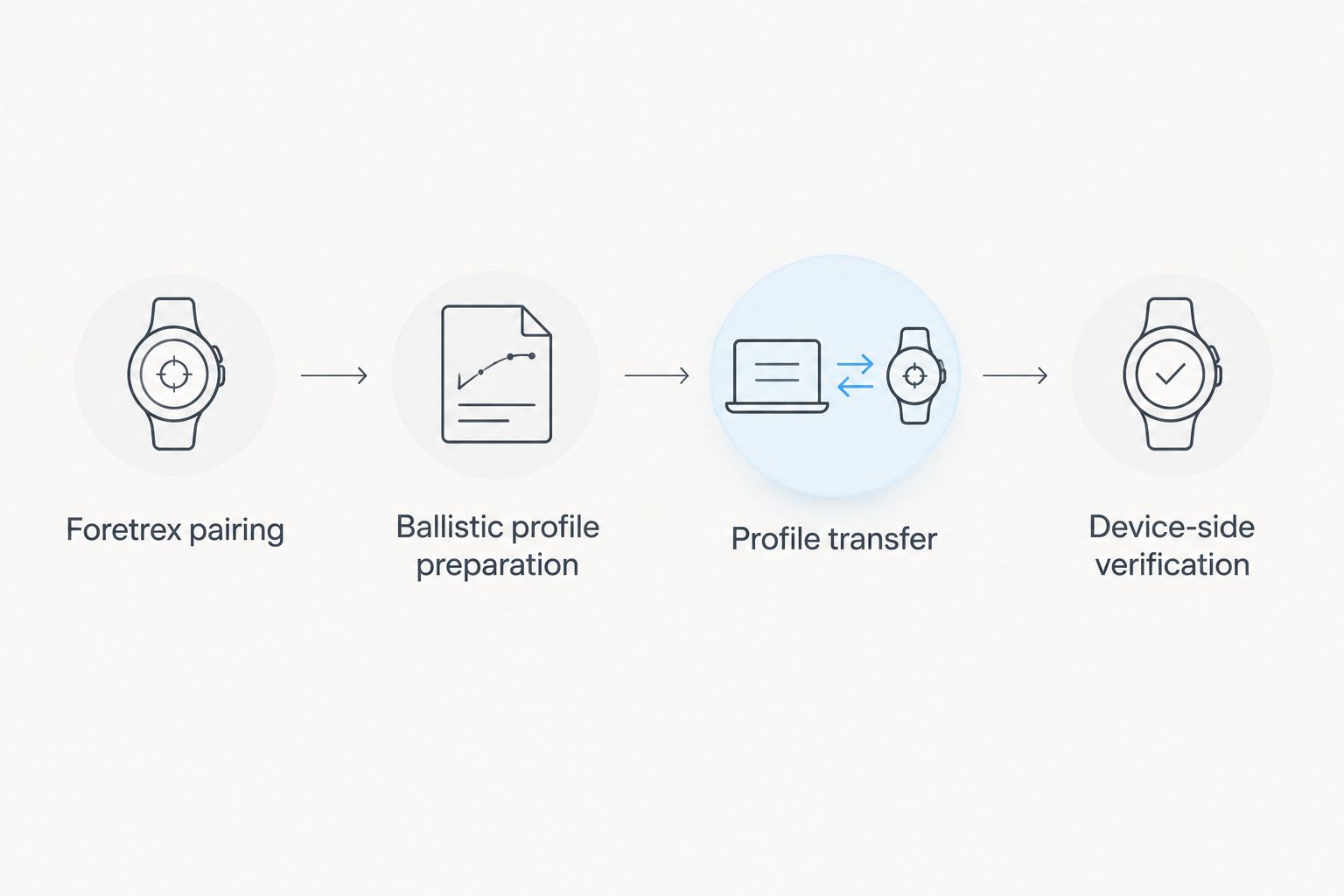
Device-side verification
- Confirm the selected rifle profile again before entering target information. A successful transfer does not prevent you from selecting a different stored profile later.
- Review the target distance and the environmental inputs used by the calculation. Profile data and current shooting conditions are separate parts of the solution.
- Read the output in the same angular unit as your optic. Do not treat a displayed number as interchangeable between milliradians and minutes of angle.
- At an authorized range, follow range commands and established firearm-safety procedures when checking predicted results against observed impacts.
- If prediction and observation disagree, review the inputs before making a calibration change. Check the profile, distance, units, zero information, and measured velocity first.
Expected result: You can identify the active profile, explain its inputs, and distinguish a calculated correction from an observed impact. That is a stronger verification than seeing a Bluetooth connection icon.
Do not use a target camera to decide that a range is safe to enter. Remote viewing does not replace cease-fire procedures, range commands, or a clear firing line.
A camera also does not establish which input caused a prediction error. It shows the target; you still need to check the data behind the solution.
Update an existing rifle profile
The adjacent workflow is an update rather than a first connection. Use it when you have verified a changed input, such as a new measured muzzle velocity for the same rifle-and-ammunition combination.
- Identify the existing profile before editing it. Confirm that you are not changing a similarly named profile for a different load.
- Record the original value and the reason for changing it. Keep the new measurement separate from any unexplained difference between predicted and observed impact.
- Edit and save the intended profile in the supported app. Transfer the updated profile using the app's displayed device-transfer workflow.
- Open the profile on the Foretrex and read back the changed field. Confirm that the updated profile is active.
- Leave unrelated fields unchanged unless you have evidence that they also need correction.
Expected result: The Foretrex contains the verified update, and you can distinguish it from the previous profile state. Do not assume that editing the phone copy automatically changes the navigator copy.
Keep this distinction in your 2026 range notes: a profile saved in an app is not a profile verified on the Foretrex.
Troubleshooting
The app cannot find the Foretrex
Put the navigator back into PHONE and PAIR PHONE, then retry discovery from the supported app. Check Bluetooth and the app's device-discovery permissions on the phone.
Keep the devices together while diagnosing pairing. Do not introduce distance, another phone, and a different app simultaneously; change one part of the connection attempt at a time.
The phone remembers the device, but the app does not connect
A remembered operating-system pairing does not prove an active app connection. Close other apps attempting to communicate with the device, restart the supported app, and repeat its connection workflow.
If the connection still fails, follow the app's and Garmin's documented instructions for removing a stale pairing and pairing again. Avoid deleting ballistic profiles as a first response to a Bluetooth problem.
Transfer finishes, but the expected profile is missing
Check which profile you selected in the app and which navigator the app identified. Then inspect the Foretrex profile list rather than looking only at the currently active profile.
Repeat the transfer only after confirming those selections. Keep the source profile until you have completed device-side readback.
The profile exists, but the solution looks wrong
Check the active profile, target distance, environmental inputs, and angular units. Compare muzzle velocity, zero distance, and sight height against your source notes.
Do not diagnose a calculation discrepancy as a Bluetooth fault when the profile transferred correctly. Connection troubleshooting and ballistic-input verification are different tasks.
A different Applied Ballistics app does not list the device
Check that app's current supported-device information. Do not infer compatibility from the Applied Ballistics name alone.
For a 2026 connection, use the documented Foretrex workflow or an alternative whose current documentation explicitly supports your device. Instructions for another ballistic-enabled product are not a substitute.
Customize your workflow
Build a repeatable sequence: verify inputs, transfer the profile, read it back on the navigator, and then compare predictions with observations under approved range conditions. Keep connection changes separate from profile changes.
Longshotcameras target cameras add remote impact viewing to that process, but they remain a separate system. Use a camera to observe the target, not to certify the ballistic profile or the safety of the range.
Keep your profile notes organized by rifle and ammunition combination. A descriptive name and a record of verified inputs make the next update easier to audit than a collection of nearly identical profiles.
FAQ
Does the Garmin Foretrex 901 already have Applied Ballistics?
Yes. The Garmin Foretrex 901 contains an Applied Ballistics solver; connecting a compatible phone app manages profiles rather than installing the solver.
Which app connects to the Garmin Foretrex 901 for ballistic profiles?
AB Synapse – Garmin is the profile-management app documented for the Foretrex 901. Check current device-support information before using another Applied Ballistics app.
Do I pair the Foretrex from my phone's Bluetooth settings?
Start with the Foretrex phone-pairing mode and follow the supported app's connection instructions. A remembered entry in the phone's Bluetooth settings does not prove that the app can transfer profiles.
Can I enter a profile directly on the Foretrex 901?
Yes. The Foretrex 901 supports device-side ballistic profile entry and editing, which is a separate workflow from managing profiles through a phone app.
How do I know a ballistic profile transferred correctly?
Open the profile on the Foretrex and compare its stored inputs with your source information. Also confirm that the intended profile is active before interpreting the solver's output.
Why does my Foretrex solution disagree with the target impact?
Check the active profile, units, target distance, environmental inputs, and verified rifle data first. A completed profile transfer does not establish that every calculation input is correct.
Does editing the phone profile automatically update the Foretrex?
Do not treat a phone edit as a verified device update. Complete the supported transfer workflow, then read back the changed field on the Foretrex.
Can a target camera connect the Foretrex to Applied Ballistics?
A target camera is not the Foretrex ballistic-profile connection. Its role is remote target observation, separate from profile management and ballistic calculation.
One last thing
The decisive connection check is a value on the Foretrex, not a success message on the phone. After every transfer, read back the field you intended to change and confirm the active profile. That small check separates successful communication from successful setup.