Instead of picking up your tablet after every shot, use a tablet stand for shooting to keep your target-camera view visible at the bench. This 2026 workflow covers device fit, viewing angle, camera connection, and a repeatable hands-free spotting check before the firing line goes live.
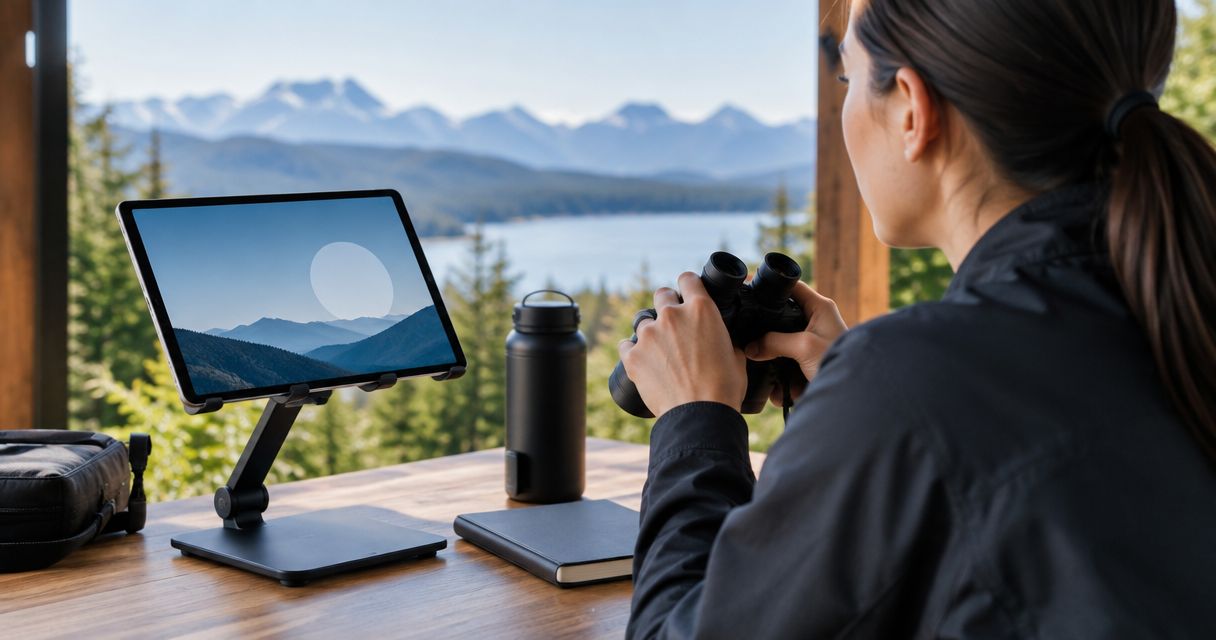
- The Longshot Tablet Stand (Black) – Target Camera System offers two viewing positions for hands-free bench viewing.
- A tablet stand for shooting supports the screen; it does not establish the target-camera connection.
- Connect the camera and confirm a live view before adjusting the tablet stand.
- Keep the display outside the firearm’s operating space and follow every range command.
Why this matters
A tablet lying flat on a bench forces you to change your viewing position. Holding it occupies a hand, and moving it repeatedly changes the screen angle. A supported display gives the target-camera feed a fixed place in your shooting setup.
Longshotcameras target-camera accessories are best for precision shooters who want a supported screen for remote impact viewing. The stand solves the screen-positioning problem; the camera system solves the downrange-viewing problem. Neither replaces range commands or permission to approach a target.
For your 2026 setup, separate those jobs before troubleshooting. If you cannot get a live image while holding the tablet, changing the stand will not restore it. Start with the camera-to-app connection guide, then position the working display.
Before you start
- Gather the complete viewing chain: your target camera, its required receiver or connection equipment, a compatible tablet, the appropriate viewing app, and the camera’s setup instructions. Charge the devices before leaving for the range.
- Check the tablet with its case attached: the Longshot Tablet Stand (Black) – Target Camera System holds most smart devices and offers 2 viewing-angle positions. “Most” does not mean every tablet-and-case combination; verify seating and access to ports before packing.
- Plan around range access: install and adjust downrange equipment only when the range permits it. The non-obvious gotcha is discovering a framing problem after the range goes live, when you cannot simply walk out to move the camera.
Bring any charging equipment your devices require, but do not assume a cable or charger is interchangeable between devices. Connection instructions and app controls depend on the equipment you actually own. Use the labels shown in that equipment’s current instructions rather than following a guessed menu sequence.
Bench layout and tablet fit
The first configuration unit is physical placement. Build the viewing station with the firearm unloaded and handled according to range rules; do not adjust a screen while simultaneously handling the firearm.
- Clear the viewing area. Choose a stable section of bench that leaves the firearm, ammunition, rests, and controls unobstructed. Keep the display outside the firearm’s movement and ejection area.
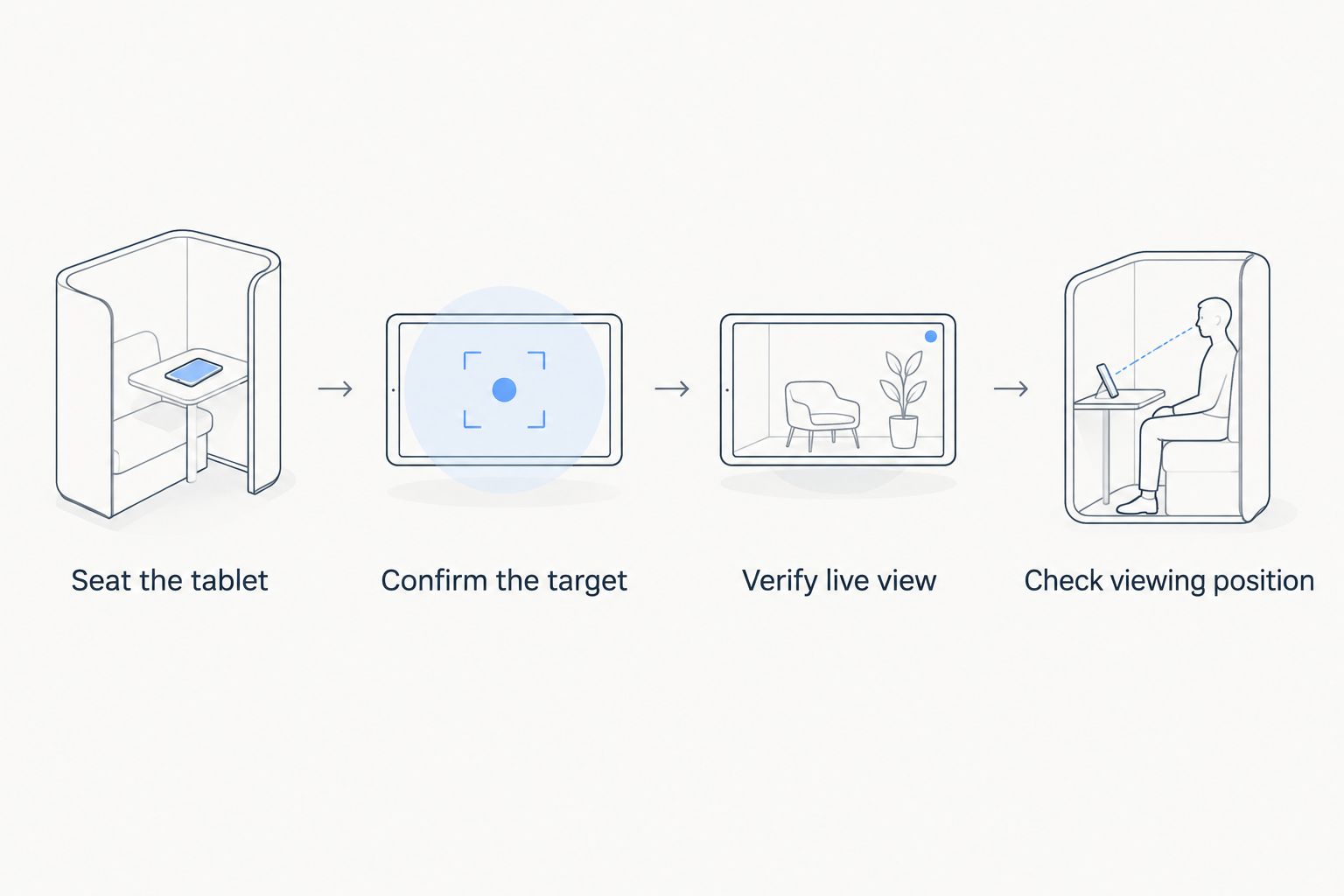
- Seat the tablet. Put the device into the stand with its normal protective case attached. Check that the support contacts the device securely rather than balancing it on a case flap or loose cover.
- Try both viewing positions. Sit where you will actually shoot and compare the stand’s two angles. Choose the position that makes the whole target visible without requiring you to lean across the bench.
- Check ordinary interaction. With the firearm safely set aside, tap the screen as you would during a session. If the tablet rocks, slides, or shifts out of position, correct the fit or placement before continuing.
- Route any cable. Leave enough slack for normal screen use without creating a loop across equipment or the bench edge. A charging cable should not pull the tablet sideways.
Expected result: the tablet stays supported during normal screen interaction, and you can view the target without moving the stand or interfering with safe firearm handling.
The Longshotcameras tablet-stand listing describes two viewing positions, not unrestricted angle adjustment. Treat those positions as a fit check: if neither works from your normal seat, change the stand’s location rather than improvising an unstable stack beneath it.
Supported viewing versus holding the tablet
These are two ways to view the same camera feed, not two different camera systems. Choose based on whether the screen needs to stay in a fixed location or move between users.
| Viewing option | Best for | Advantage | Limitation |
|---|---|---|---|
| Longshot Tablet Stand (Black) – Target Camera System | Fixed bench viewing | Supports most smart devices with two viewing-angle positions | Fit still needs checking with your tablet and case; angle choices are limited |
| Handheld tablet | Brief checks or passing the screen to another viewer | Lets you change screen position directly | Occupies a hand and does not maintain a fixed viewing position |
Choose supported viewing for a stationary bench workflow. Keep handheld viewing for deliberate checks made while the firearm is safely set aside; do not make holding a screen part of firearm operation.
Camera connection and live-view check
Complete the connection before deciding whether the tablet angle is correct. An empty screen, frozen image, and poorly positioned display are different problems with different fixes.
- Position the camera during authorized access. Follow the camera’s placement instructions and range rules. Frame the intended target while you are permitted to make downrange adjustments.
- Power the required equipment. Turn on the camera and any connection components specified for your system. Confirm that the tablet also has enough charge for the planned session.
- Follow the model-specific connection sequence. Use the camera instructions to select the required connection and open the viewing app. Do not assume that a familiar household internet connection is the correct path to the camera.
- Confirm the intended target. Compare the screen image with the target’s visible features. Verify that you are viewing the correct target and that the area you intend to inspect is inside the frame.
- Verify that the image is live. During authorized setup access, have a helper make a harmless, visible change in the camera’s scene while everyone follows range commands. Confirm that the change appears on the tablet before relying on the feed.
- Return the tablet to its stand. Check the image from your normal seated position. Adjust screen placement only after the connection and framing checks pass.
Expected result: the tablet shows a verified live image of the intended target while resting securely in the stand.
For a 2026 range checklist, keep these stages separate: a supported screen is not proof of a working connection, and an image on screen is not proof that the image is current. Verify each stage independently.
Display position and session check
Now test the complete station rather than adjusting individual pieces in isolation. Your target is a readable screen that stays out of the way, not the closest possible screen.
- Set the viewing orientation. Use the orientation that presents the target clearly. If automatic rotation keeps changing the layout, use your tablet’s orientation-lock control according to its operating instructions.
- Reduce reflections. Move the stand within the safe bench area and compare both viewing angles. Avoid solving glare by leaning into an awkward position or placing loose material where wind can move it into equipment.
- Review display behavior. Check the tablet’s brightness and screen-sleep settings. If you extend the awake period, plan to restore your normal settings after the session and account for the added battery use.
- Rehearse the viewing movement. With the firearm safely set aside, sit normally and look from the shooting position toward the screen. Confirm that you can find the target image without touching the tablet.
- Check after an authorized string. Once firing is permitted, inspect the target image between strings while following range commands. Make layout changes only after safely setting the firearm aside.
Expected result: the display remains readable from your normal position, and checking it does not require you to pick it up or move equipment.
In your 2026 setup notes, record the successful stand position, viewing angle, and tablet orientation. A quick photo of the cleared bench arrangement can help you reproduce the layout without relying on memory.
Shared viewing between strings
A second useful workflow is a fixed display for a shooter and an observer. It uses the same camera connection; it does not require assuming that multiple tablets can connect simultaneously.
- Choose a shared sightline. Place the stand where both people can see the display without reaching across the firearm or entering another shooter’s space.
- Assign screen interaction. Decide who will operate the tablet between strings. This prevents competing adjustments and keeps the display position consistent.
- Confirm target identity together. Both viewers should recognize the intended target before discussing what the image shows.
- Pause before changing the setup. If either viewer needs a different angle, safely set the firearm aside before moving the tablet or stand.
Expected result: both viewers can discuss the same target image without passing the tablet back and forth.
The benefit is a shared reference point. The limitation is the shared viewing angle: a position that works for one person can reflect glare toward the other. Test both seats rather than assuming a screen readable to the shooter is readable to everyone.
Troubleshooting
The tablet rocks or slides when touched
Remove the tablet and inspect how the case sits against the support. A folded cover or uneven contact point can prevent stable seating. Try the other supported position on a clean, level surface; if the device still does not sit securely, do not force the combination.
The app opens but no camera image appears
Check power and repeat the connection sequence for your exact camera system. App launch alone does not confirm a camera connection. Leave the stand alone until the tablet can display the feed independently of its physical position.
The target image appears frozen
Do not assume that an unchanged target proves a connection failure—or proves a working feed. Repeat the live-view verification during authorized access. If the scene does not update, follow the camera’s reconnection instructions before relying on the display.
The screen is readable until you sit down
The standing setup angle does not match the seated viewing angle. Return to your normal seat, compare both stand positions, and move the stand within the safe bench area. Address reflections through placement rather than simply increasing brightness.
The screen goes dark during a pause
Check whether the tablet entered sleep or ran out of charge before restarting the camera system. Review the tablet’s display settings and charging arrangement. After waking the screen, verify the camera view again instead of assuming the previous connection remains active.
Customize your workflow
Improve the part that actually limits the session. If the target image is framed poorly, work on camera placement during authorized access. If the image is clear but uncomfortable to view, work on the tablet position. Changing both at once makes the cause harder to identify.
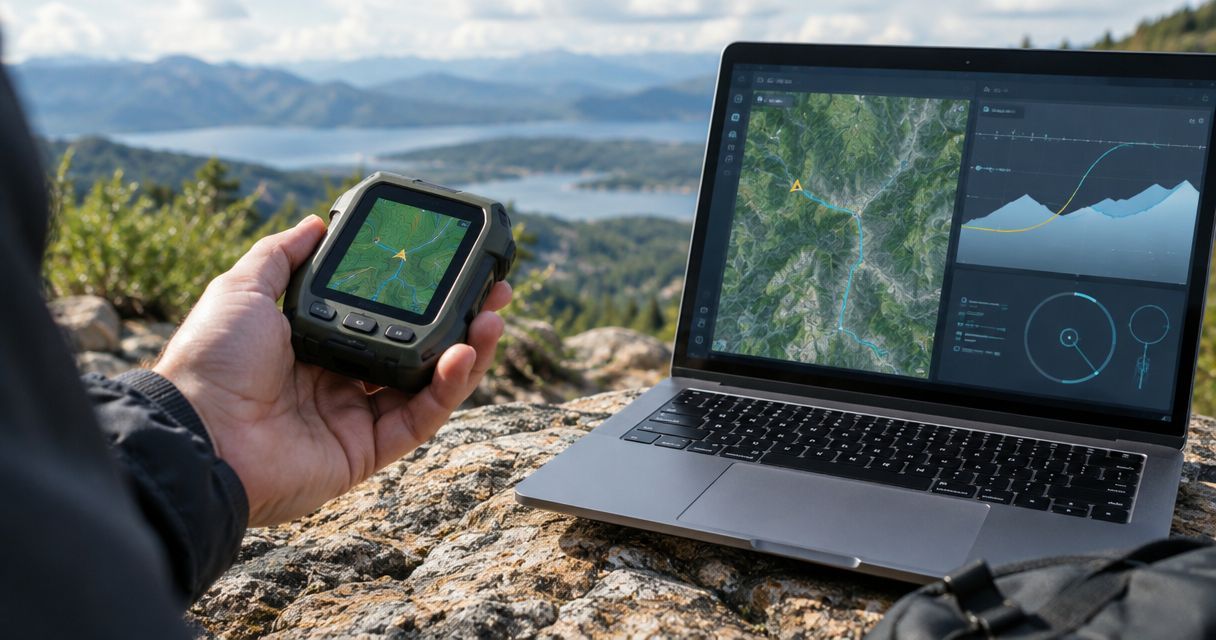
Longshotcameras sells target-camera systems described as supporting remote impact viewing at distances up to 2 miles. That does not assign a 2-mile capability to the tablet stand, or establish that every camera model has the same range. Check the requirements for the specific system you use.
For a 2026 equipment review, treat camera support and tablet support as separate decisions. The tall-tripod setup guide addresses the camera side; the tabletop stand addresses the viewing side. Neither should be improvised as a substitute for the other.
FAQ
What's the best tablet stand for shooting from a bench?
The Longshot Tablet Stand (Black) – Target Camera System is a relevant option for fixed bench viewing because it holds most smart devices and offers two viewing-angle positions. Check your tablet with its case attached before choosing it.
Does a tablet stand connect my tablet to a target camera?
No. A tablet stand supports the display; the target-camera system and its required connection equipment provide the image.
Will the Longshot tablet stand fit an iPad with a case?
Fit must be checked with the actual iPad and case. The listing describes support for most smart devices, including tablets such as iPad, but does not establish compatibility with every case.
Can a tablet stand improve target-camera range?
No range improvement is stated for the tablet stand. Camera range depends on the specific camera system and its setup, not on the accessory supporting the tablet.
How do I know the target image is live rather than frozen?
Verify a harmless visible change in the camera scene during authorized range access. Confirm that the change appears on the tablet before relying on the feed.
Can two people watch the same tablet while shooting?
Two people can use one supported display if both have a safe, clear sightline. Assign screen interaction and make position changes only after the firearm is safely set aside.
Do I still need to follow ceasefire rules with a target camera?
Yes. A target-camera image never grants permission to go downrange or overrides range commands. Install and adjust downrange equipment only when authorized.
One last thing
Test whether the screen is live, not merely whether it is visible. A perfectly positioned tablet can display an old image just as comfortably as a current one. Add that verification to your 2026 pre-session routine before spending time refining the stand angle.